![WorldVia Logo.png]](https://kb.worldviatravelnetwork.com/hs-fs/hubfs/Email%20Signatures/WorldVia%20Logo.png?height=40&name=WorldVia%20Logo.png)
-
Log into TRAMS
- Click Profiles -> Query

- Search the agent's name in the search bar
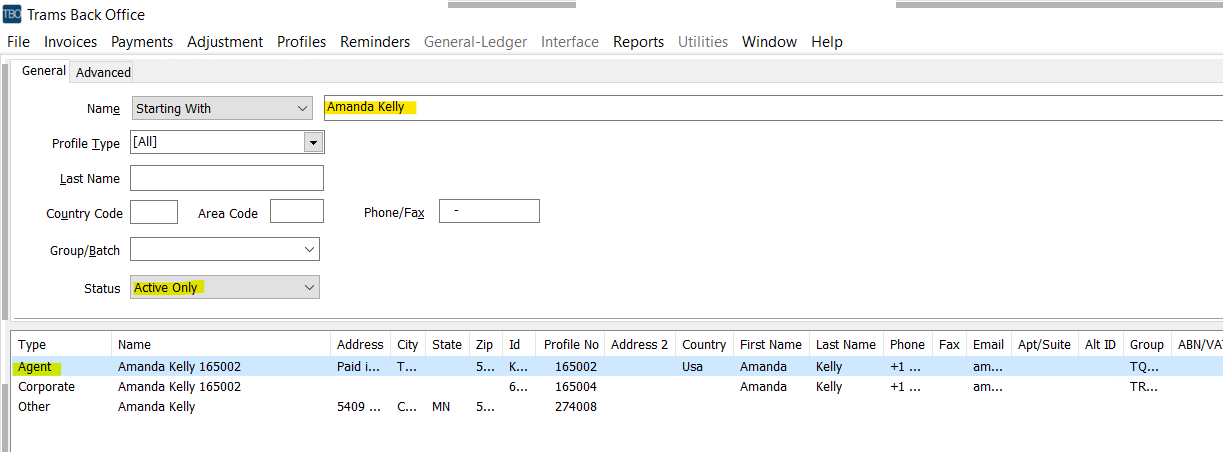
- Double click the Agent Profile listed in the search results
- Click on the PAYMENT INFO Tab

- If this is a bank information update, please click on the current bank information and click delete. If there is no bank information listed, move forward to step 7.
- Enter the following information from the agent's Bank Authorization form
- Change the Account type to “Bank Account”
- Enter the agent’s account number
- Enter the agent’s name in the “Name On Acct” box
- Enter the agent’s bank routing number
- If this is a savings account type in SV before the name on the account (Example SVJohnDoe)
- Click “Add”
Important:
-
Always save the bank form to the agent's Agent Document folder in SharePoint
-
Always double-check that the routing number has 9 digits
-
The RightSignature domain name is Travelquestnetwork85